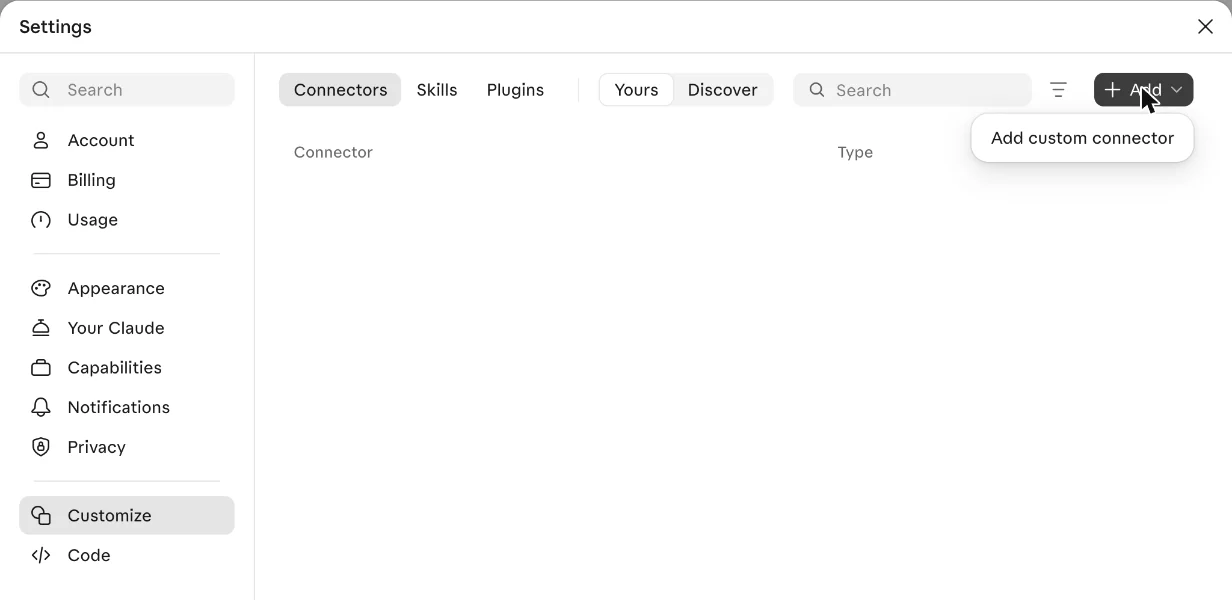
1Open Customize, then Connectors
In Claude on the web or the desktop app, open Settings, then Customize. Choose Add, then Add custom connector.
Start with Stets · Web, desktop and phone
Add Stets once on claude.ai or in the desktop app. Your phone picks it up after that.
The address of Stets:
In Claude on the web or the desktop app, open Settings, then Customize. Choose Add, then Add custom connector.
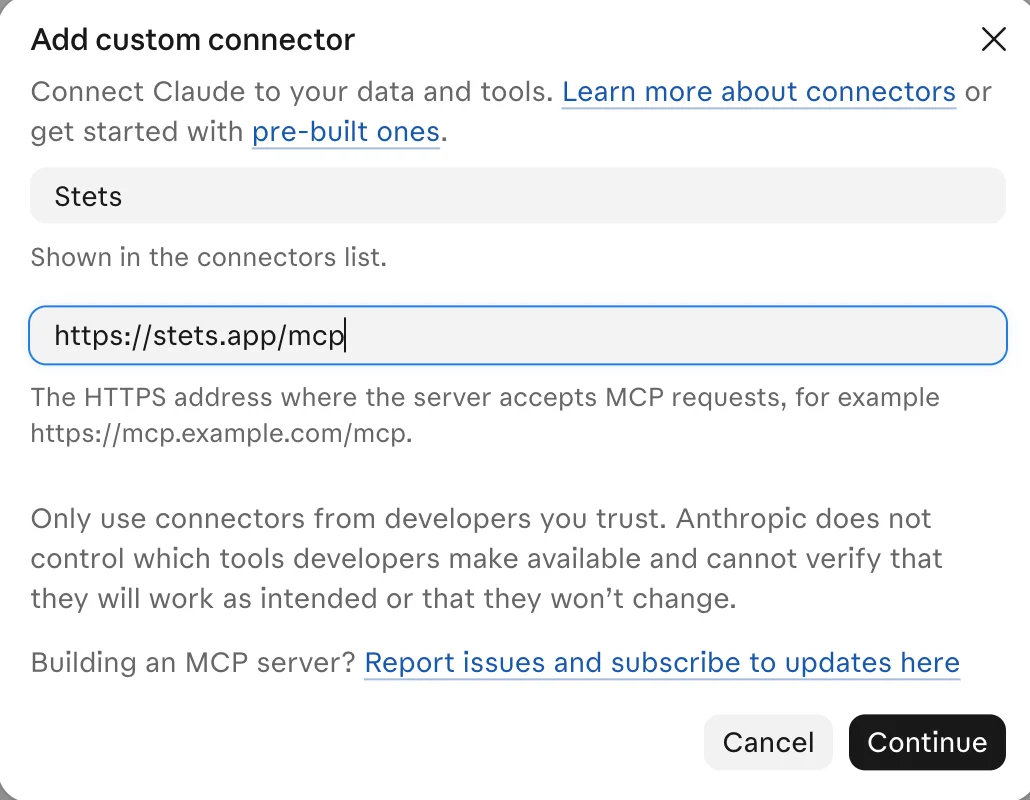
Name: Stets. Server URL: https://stets.app/mcp. Choose Continue.
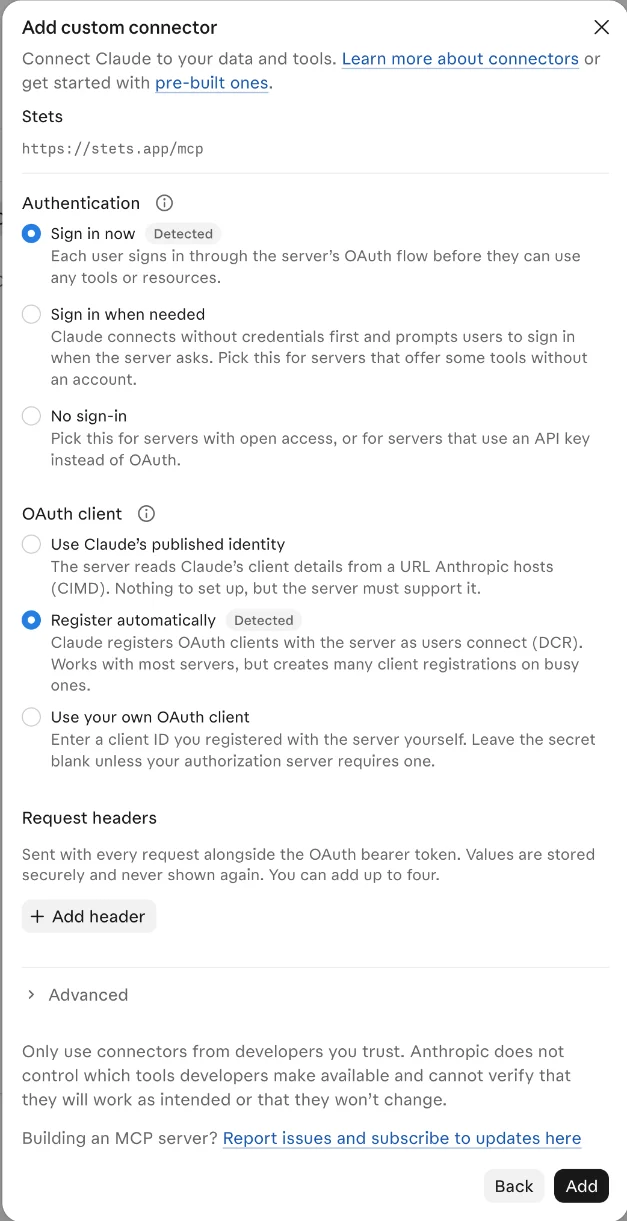
Claude finds out how Stets signs you in: Sign in now and Register automatically. Leave them as they are and choose Add.
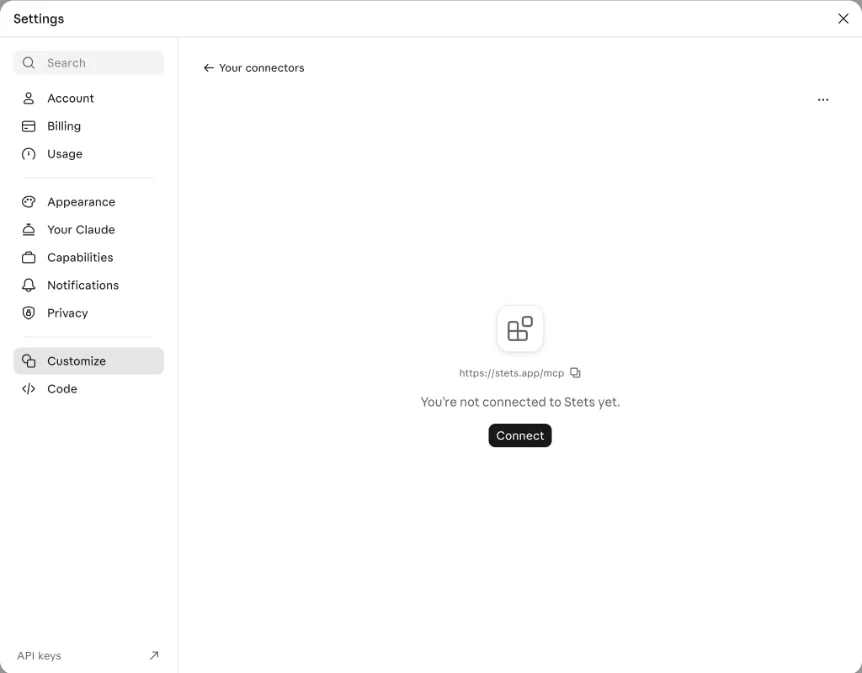
Stets is now in your list. Choose Connect.
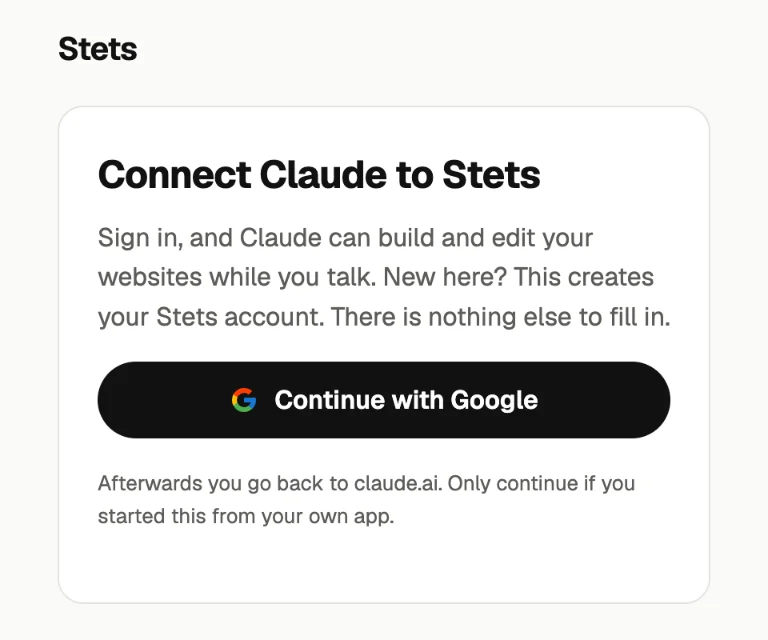
A Stets page opens. Choose Continue with Google and pick your account. New here? This creates your Stets account. There is nothing else to fill in. Already signed in to Stets, say from another app? Then it asks Allow Claude to use Stets?: choose Allow.
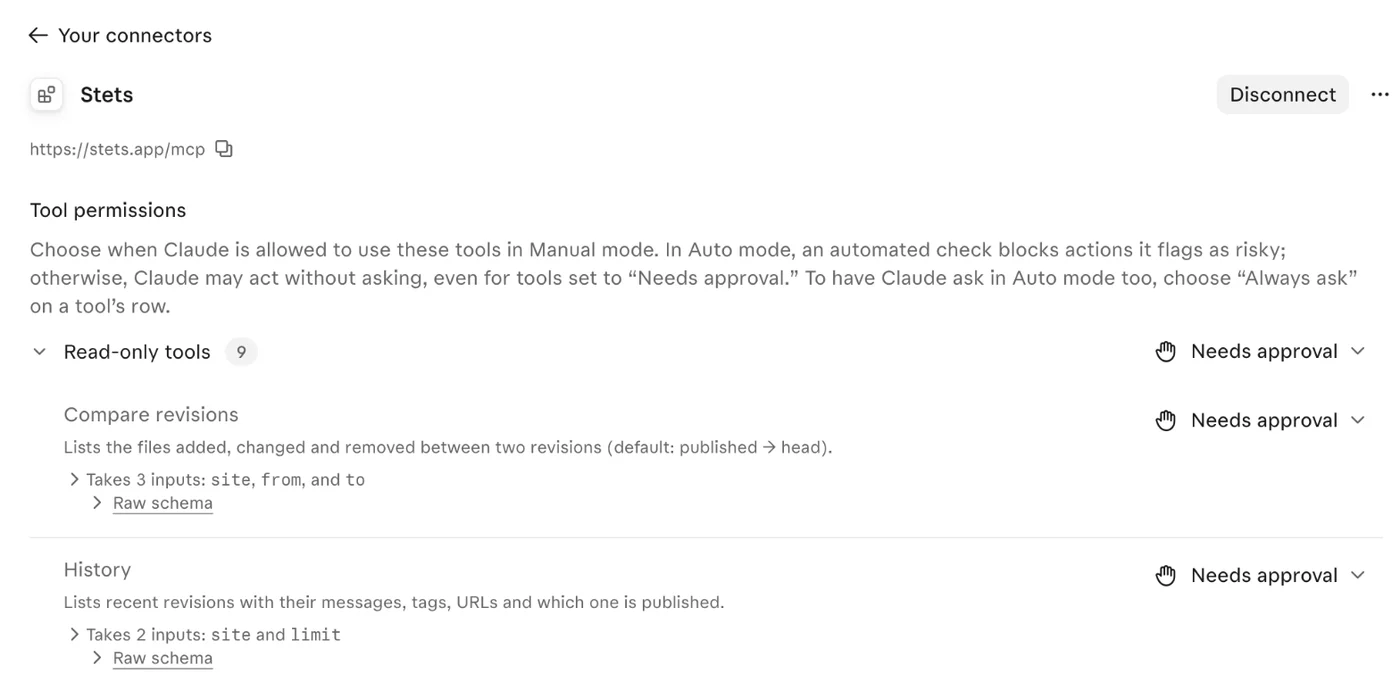
You're back in Claude. Stets shows Disconnect and its tools. Here you can choose, per tool, whether Claude asks you first.
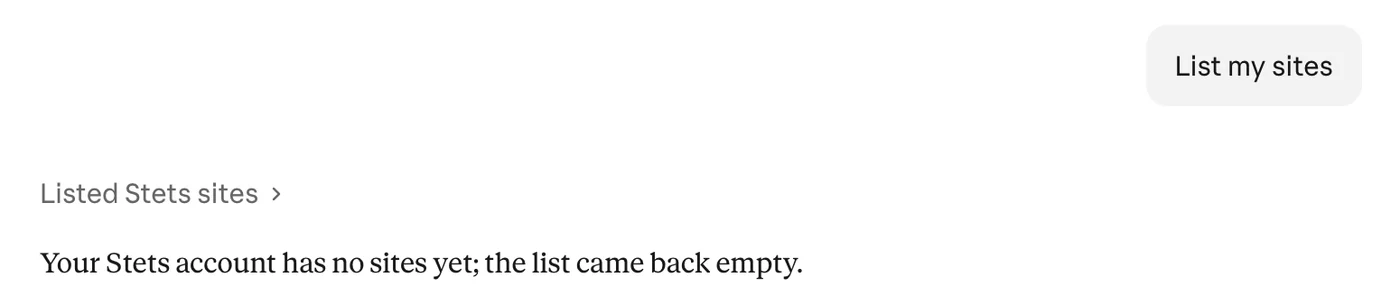
Start a new chat and say List my sites. Claude asks Stets. A new account has none yet, so the list is empty.
Start a new chat and say:
Connectors belong to your Claude account, so the desktop and phone apps can use Stets as well. We checked it on the web.
Making a new site on stets.app is by invitation for now. Without an invitation your agent can still list your sites and work on sites someone shared with you.